How to create a custom JDP background verification export report in Sports Connect.
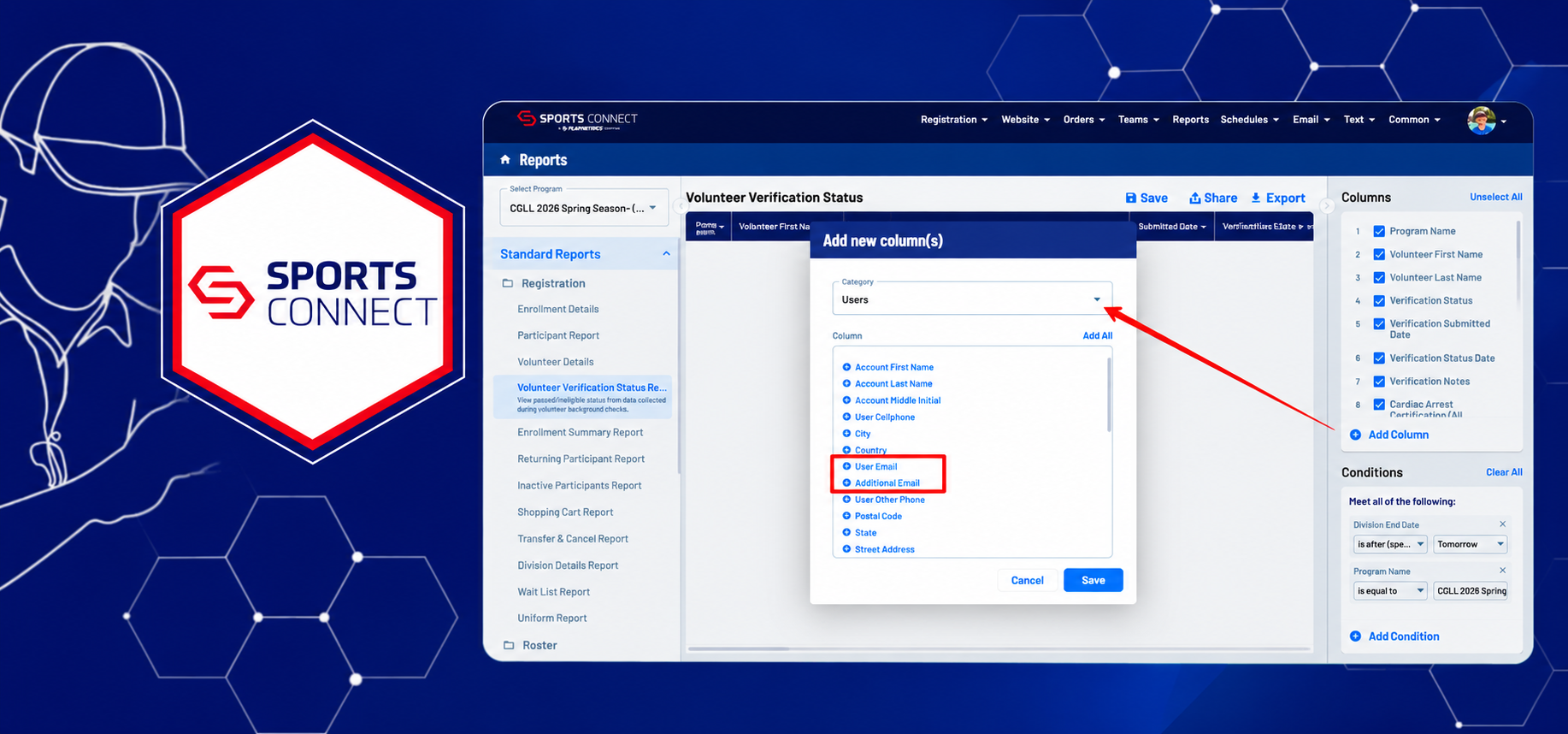
Sports Connect provides a Volunteer Verification Status Report that allows league administrators to track volunteer verification information. However, the default report may not include the email addresses needed to match volunteers across other platforms.
By adding two email fields to the report, you can make it easier to match volunteer records with systems like League Coach Center.
Here's how to customize the report in just a few steps.
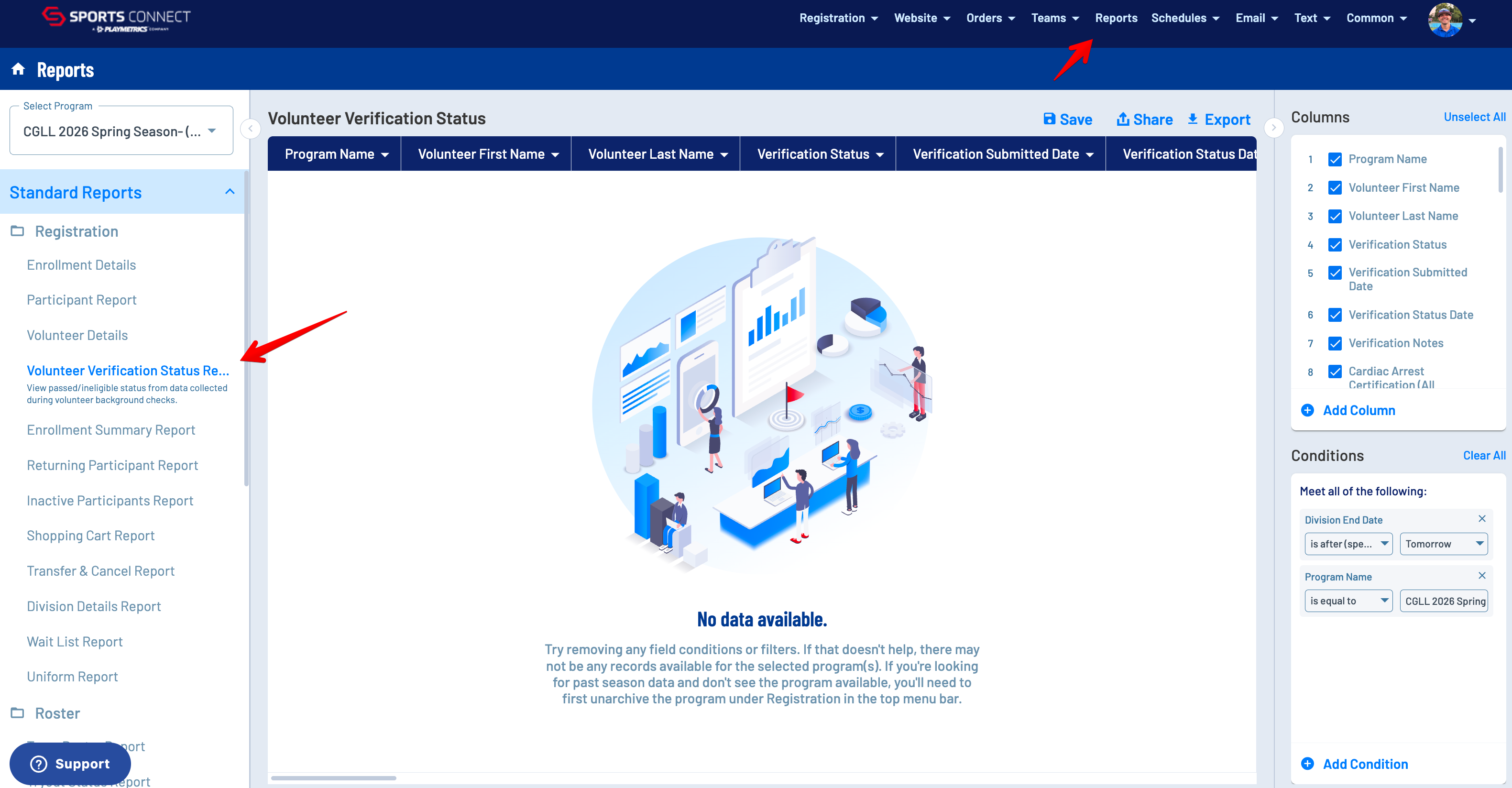
Step 1: Open the Volunteer Verification Status Report
In Sports Connect, navigate to Reports and select Volunteer Verification Status Report.
Step 2: Add Email Address Columns
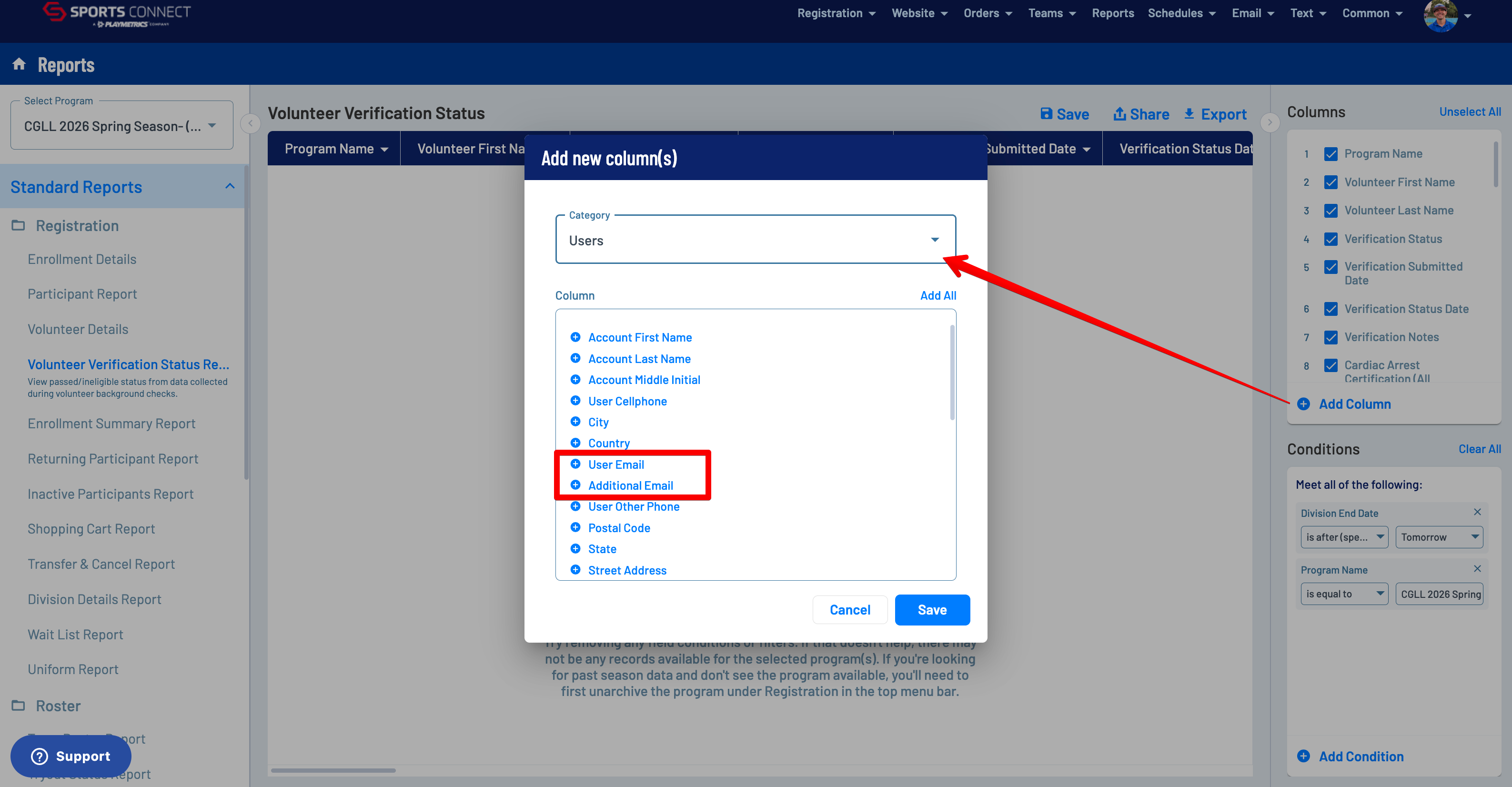
On the right side of the report, click Add Column.
In the dialog that appears:
Select Users from the dropdown menu.
Find and add the User Email column.
Add the Additional Email column as well.
Including both email fields helps improve the accuracy of matching volunteer records across systems.
Step 3: Save Your Custom Report
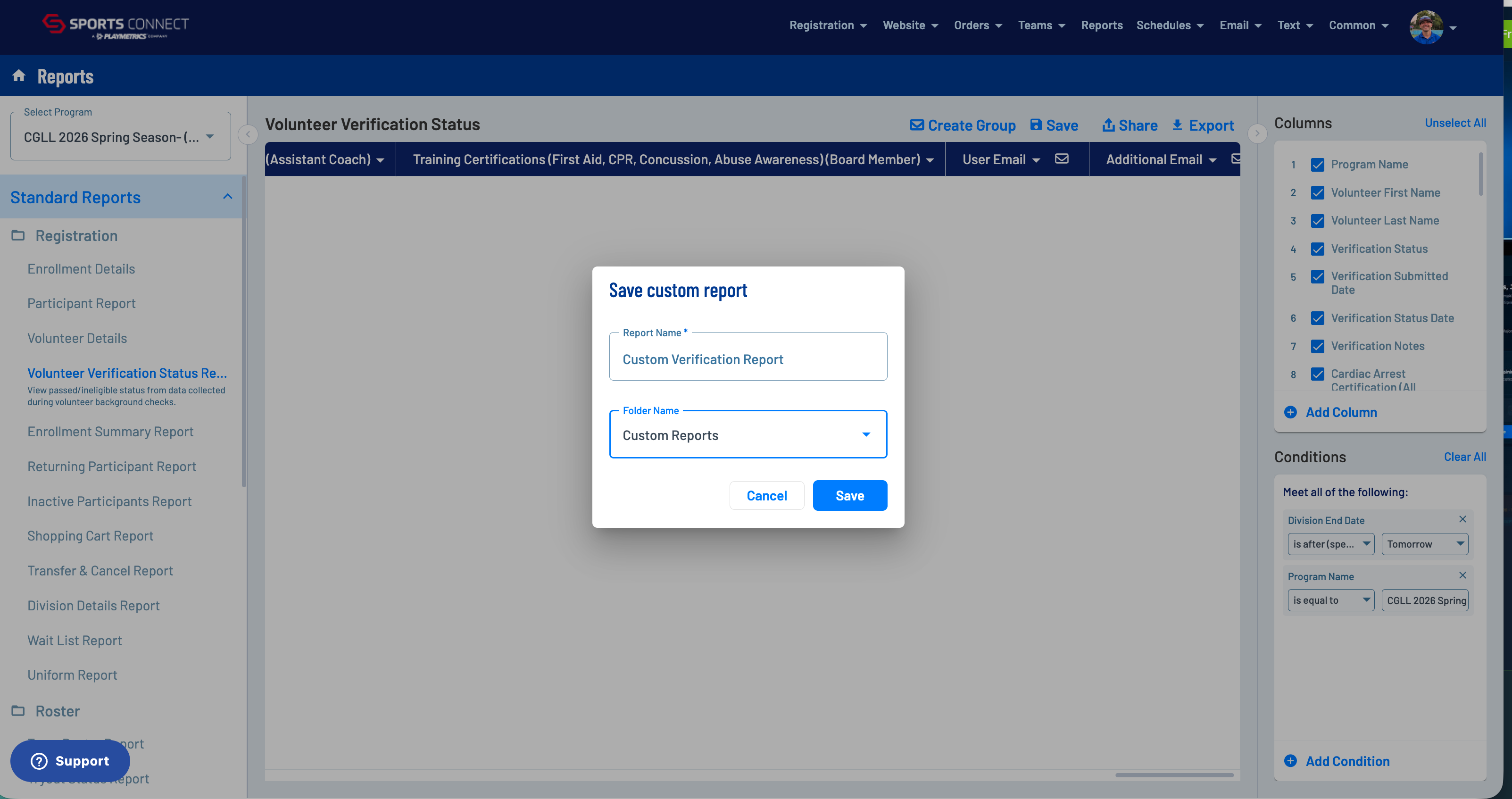
Rather than adding these columns every time, you can save your updated report as a custom report.
This allows you to reuse the same report configuration whenever you need updated volunteer verification information.
Step 4: Export Your Report
Once you've added the email columns, export the report using the available export option in Sports Connect.
Your exported file will now include the additional email fields, making it easier to identify and match volunteers in other systems.
Why This Matters for League Coach Center
When managing volunteers across multiple platforms, having consistent identifying information is essential.
League Coach Center uses email addresses to help match volunteer records with information from Sports Connect. Including both User Email and Additional Email helps reduce manual matching and makes it easier to maintain accurate volunteer verification records.
By saving this customized report, your league can simplify future exports and spend less time managing volunteer data.